To help you understand the channel porosity calculation, and to give you dramatic graphics for your publications and presentations, PoreXpert visualises the calculation it has carried out. It does that by spreading the layers it has averaged into a square two-dimensional grid representing the surface of the sample you have viewed in a micrograph. For the default case of averaging over 9 layers with Approximation level 2, the spreading is into a 3x3 layer as shown in the diagram below.

Figure CPV 1. Use of 9 layers to obtain an average value of channel porosity, with the nine layers spread into a 3x3 grid surface for visualisation
To invoke this calculation, request an Engineering | Targeted Modification operation as shown below.
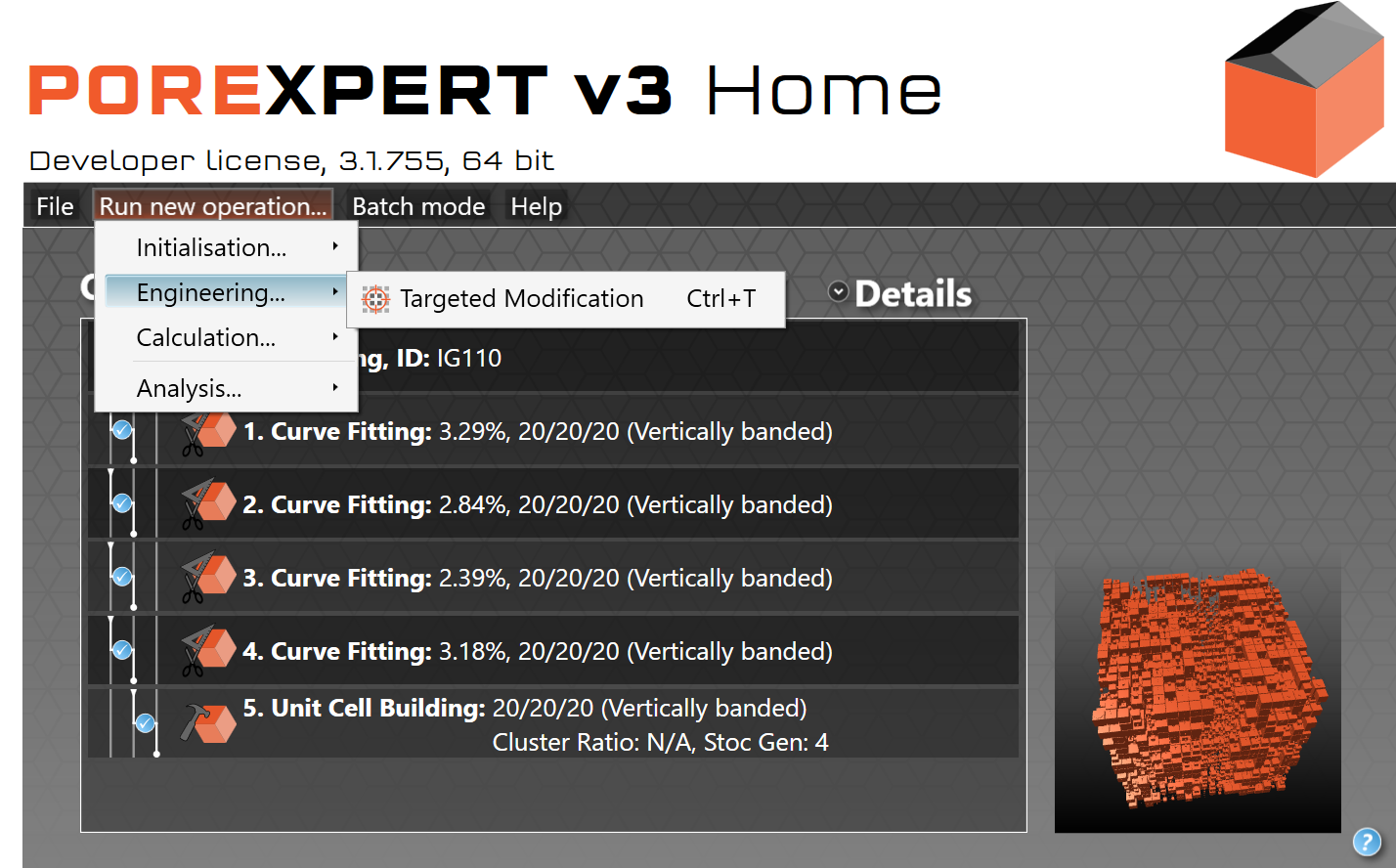
Figure CPV 2. Targeted modification selection
Wait for all the features to be selected, which may take a while (yellow Selecting, wait ... will change to green Selected).
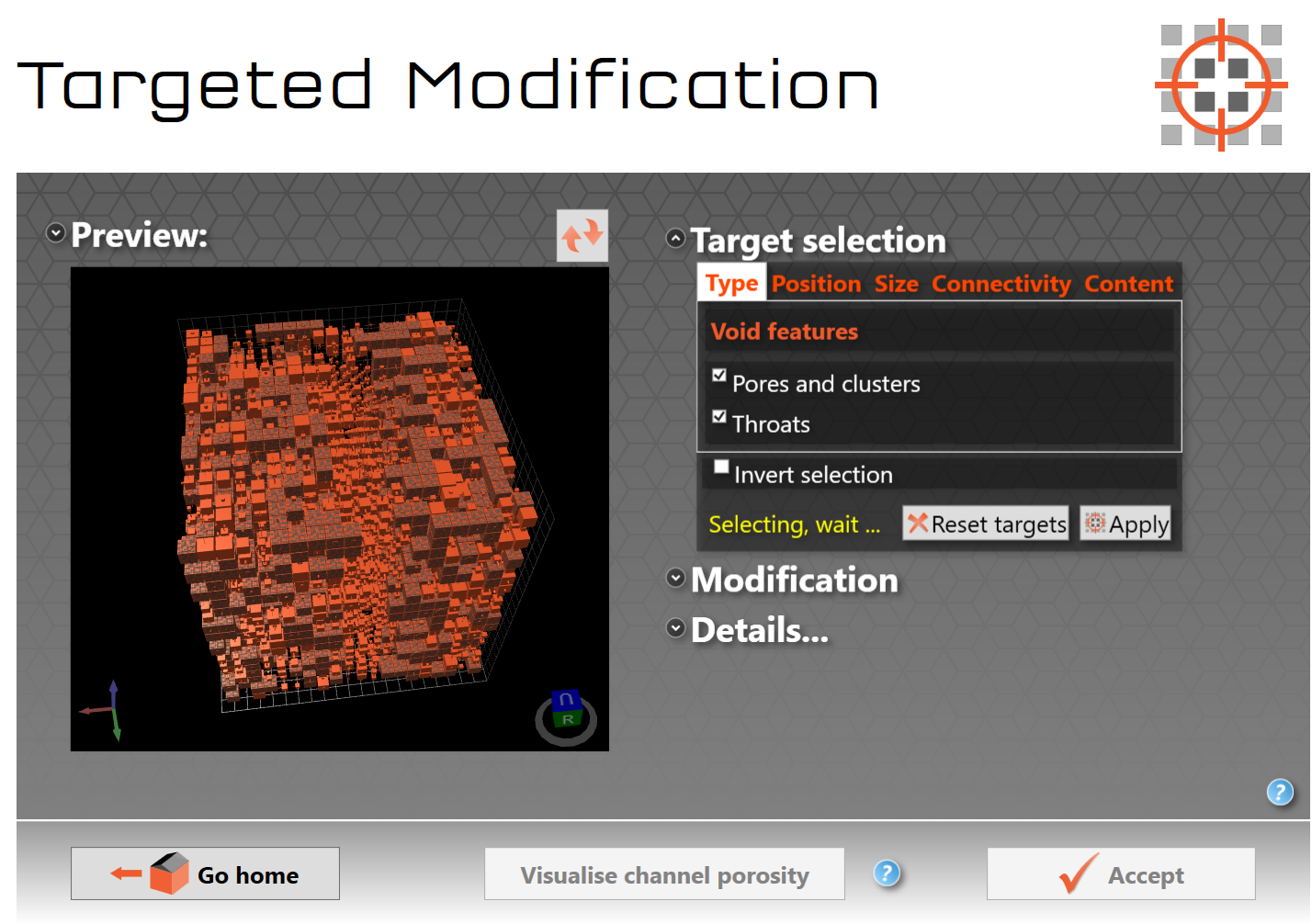
Figure CPV 3. Targeted modification screen while selecting features
Once the selection of void features is complete, the Visualise channel porosity button will become active:
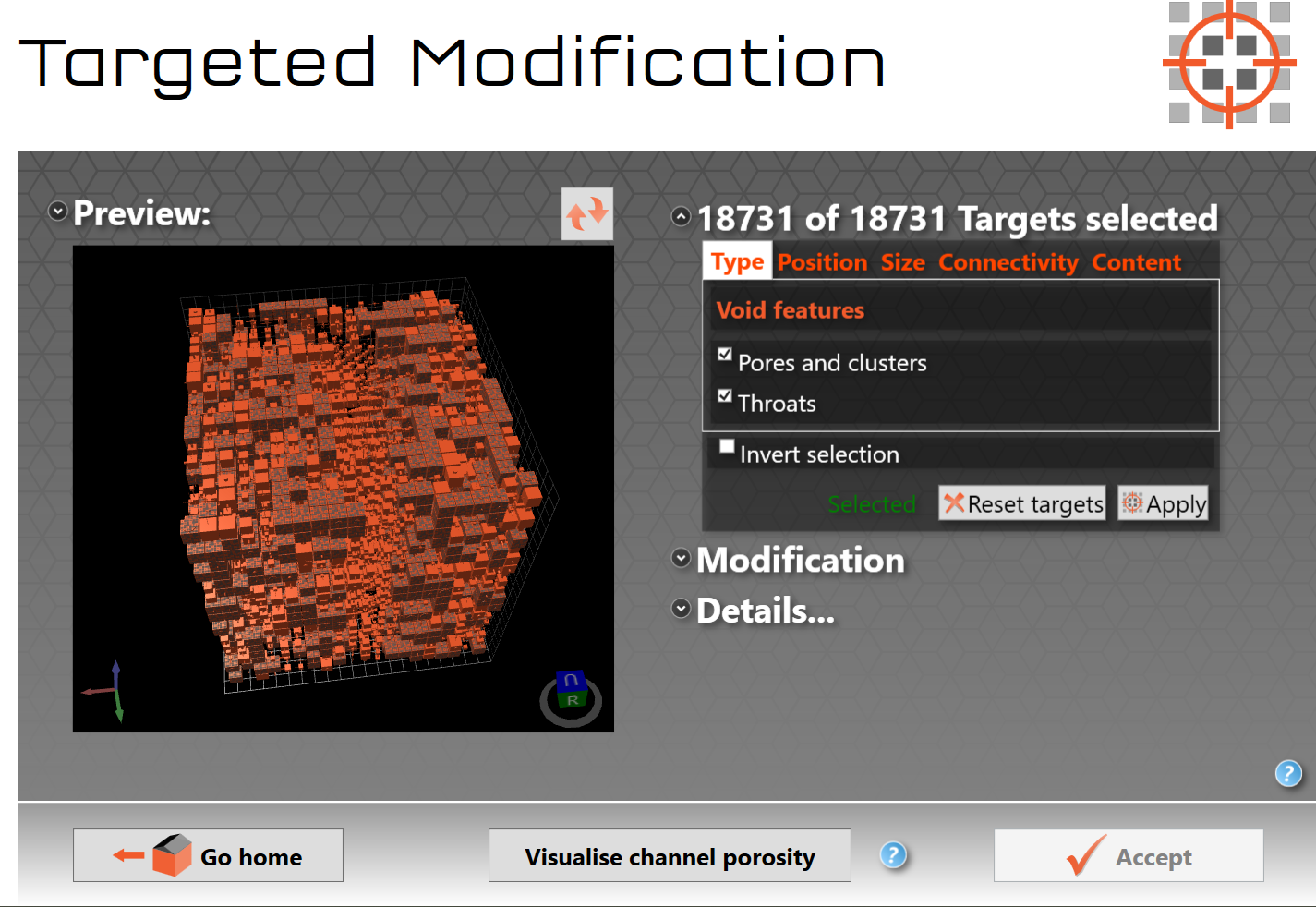
Figure CPV 4. Targeted modification after features have been selected, showing Visualise channel porosity button
Click the Visualise channel porosity button, and a visualisation will appear in the Preview: window:
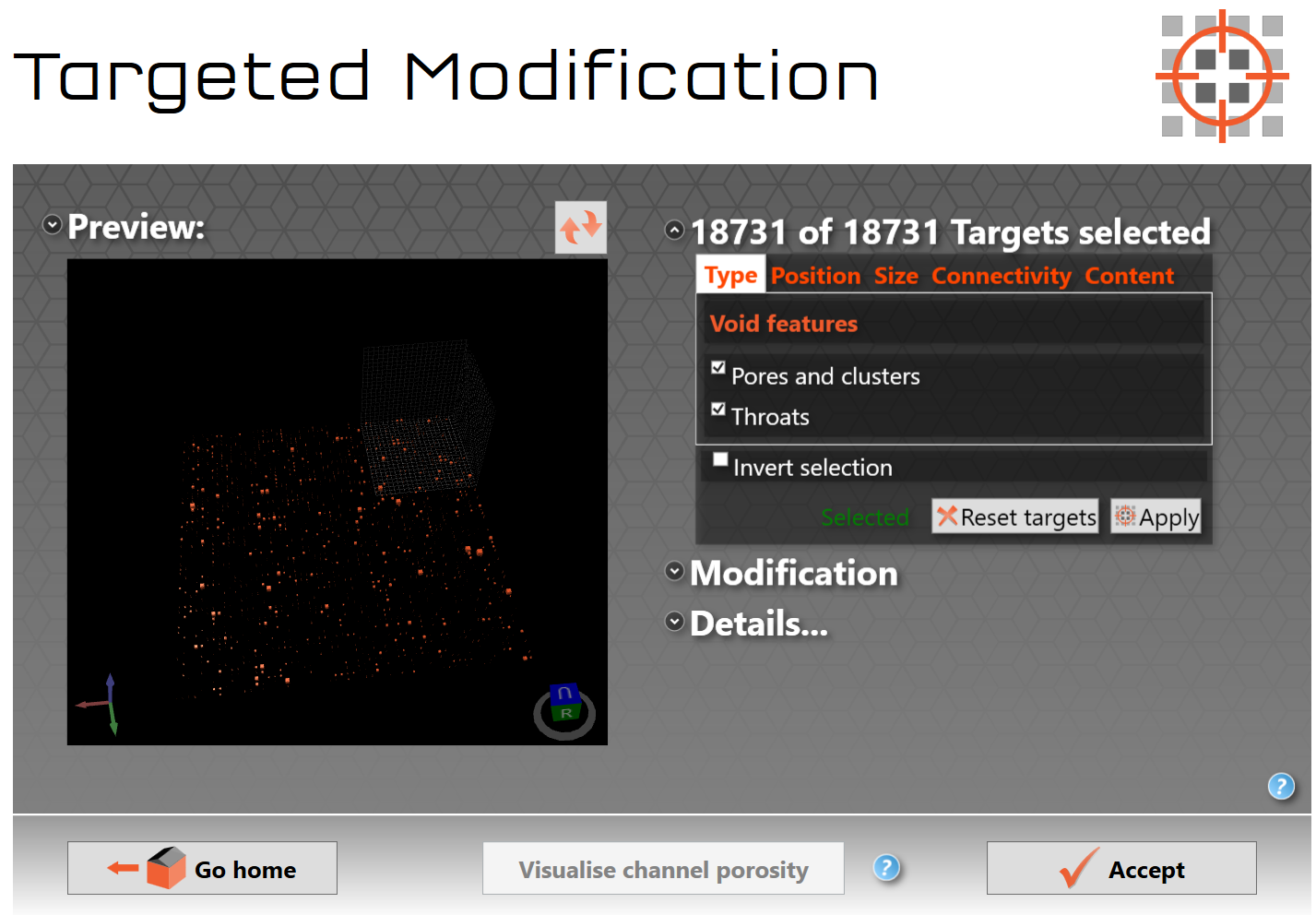
Figure CPV 5. The channel porosity visualisation showing in the Targeted modification preview window
 Occasionally, a vignetted view may appear, as shown here. In that case return to the Operations list screen, delete the Targeted Modification operation, and try again. If the problem persists, try running PoreXpert on a different computer with a different operating system.

Figure CPV 6. Vignetted preview of visualisation
With your mouse or touch pad, single-left-click on the middle of the Preview window. Then turn the mouse wheel, or touch pad equivalent, to zoom in on the view. You will notice that upper right is a feint cubic grid. This is the outline of the original unit cell, Figure CPV 1:
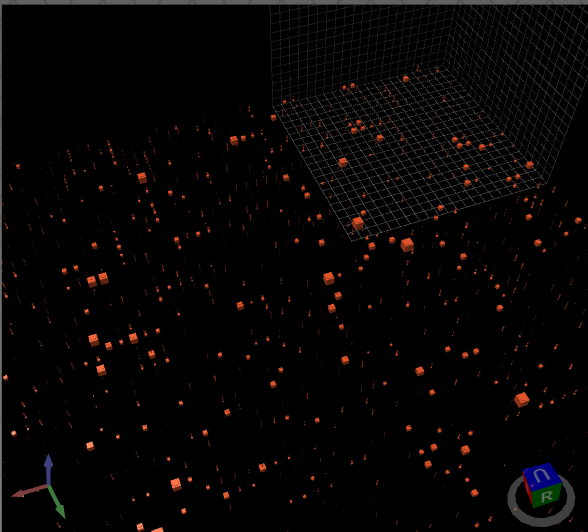
Figure CPV 7. Channel porosity visualisation preview screen zoomed in
Double-left-click in the Preview screen. You will then be given a full-screen view of the channel porosity visualisation, without the unit cell grid:
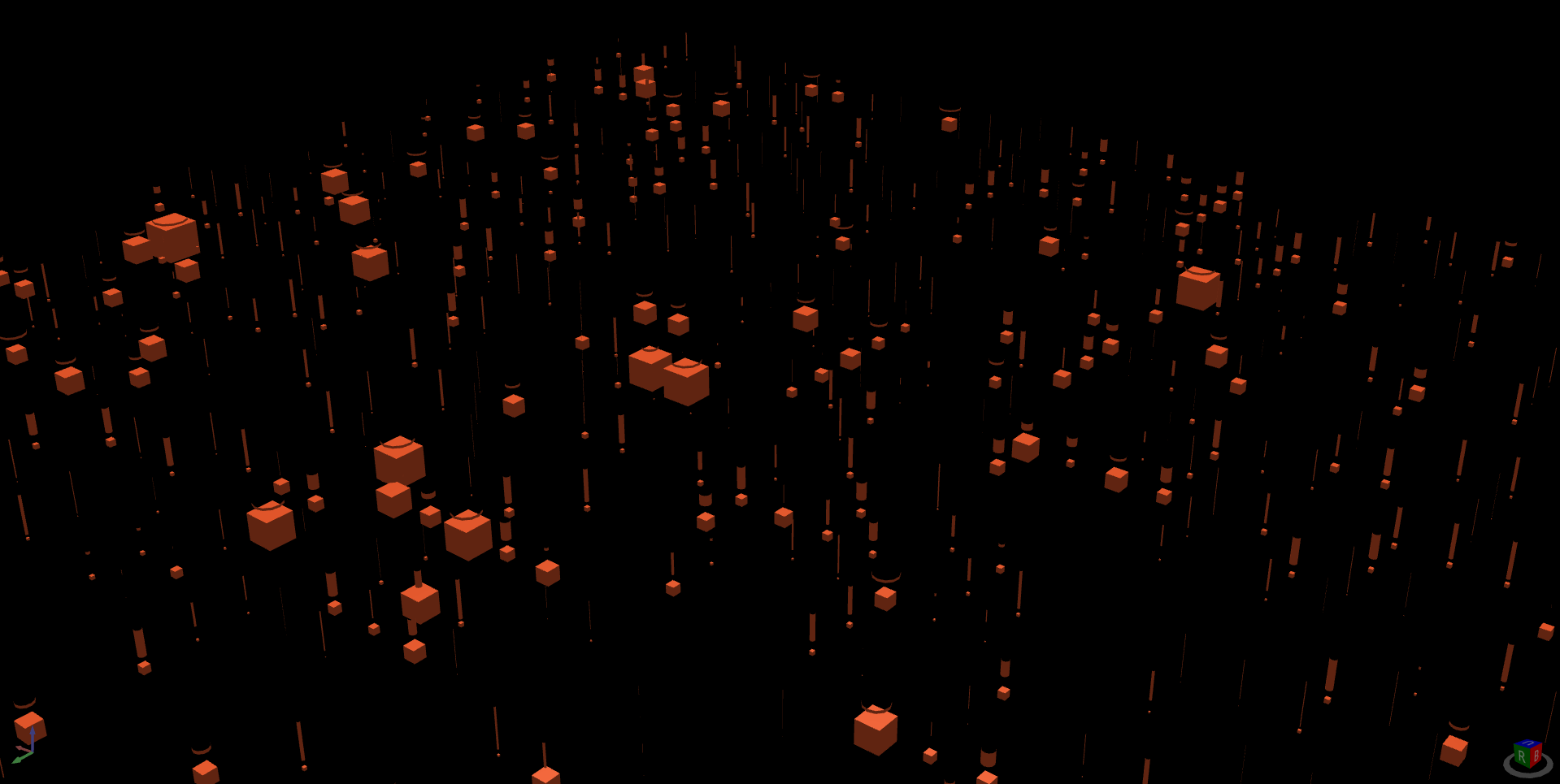
Figure CPV 8. Channel porosity visualisation preview screen double-clicked to full screen and then zoomed in.png
To save the view for documents and presentations, use your computer's Print Screen (PrtSc) function.
Click the Accept button, which will return you to the Home screen Operations List:
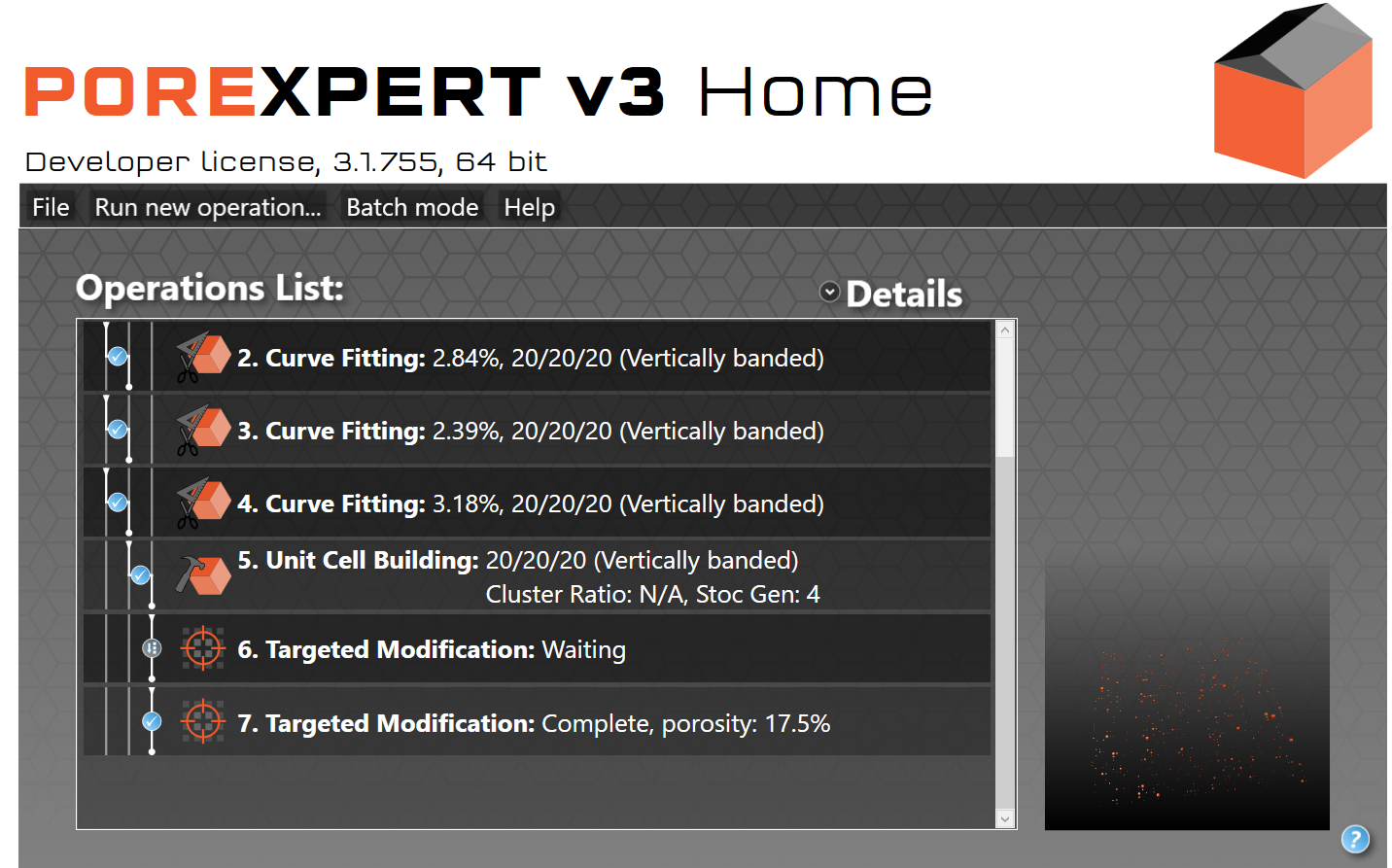
Figure CPV 9. Operations list screen after channel porosity visualisation
To return to the visualisation, double click on the Targeted Modification: Complete operation, and then 3D properties view.
Note that the visualisation does not impact the previous operations, which have already been carried out. However, if you wish to simulate other properties of the whole simulated network, e.g. as built in Operation 5 in Figure CPV 9 above, then you will need to delete the two Targeted Modification operations first - in the case above, Operations 6 and 7. You may wish to Save as... PoreXpert file before doing that, so that you can refer to the Targeted Modification channel porosity visualisation later. If you carry out other operations without doing that, which would become Operations 9 etc above, the operations will simulate the properties of the mono-layer as shown in the visualisation (Operation 7 above), which are unlikely to be of interest.