Clicking on 3D properties view reveals the Cell Inspector screen shown below. The text below the Preview window shows the x side length of cuboidal unit cells, or the side length of cubic unit cells. The other dimensions of cuboidal unit cells can be worked out from the ratio of the number of x, y and z pore rows specified by the user. For example in the 20x10x5 example shown below, the y dimension (going backwards in the image) is 3116.31 x (10/20) = 1558.16 μm, and the z (vertical) dimension is 3116.31 x (5/20) = 779.08 μm.
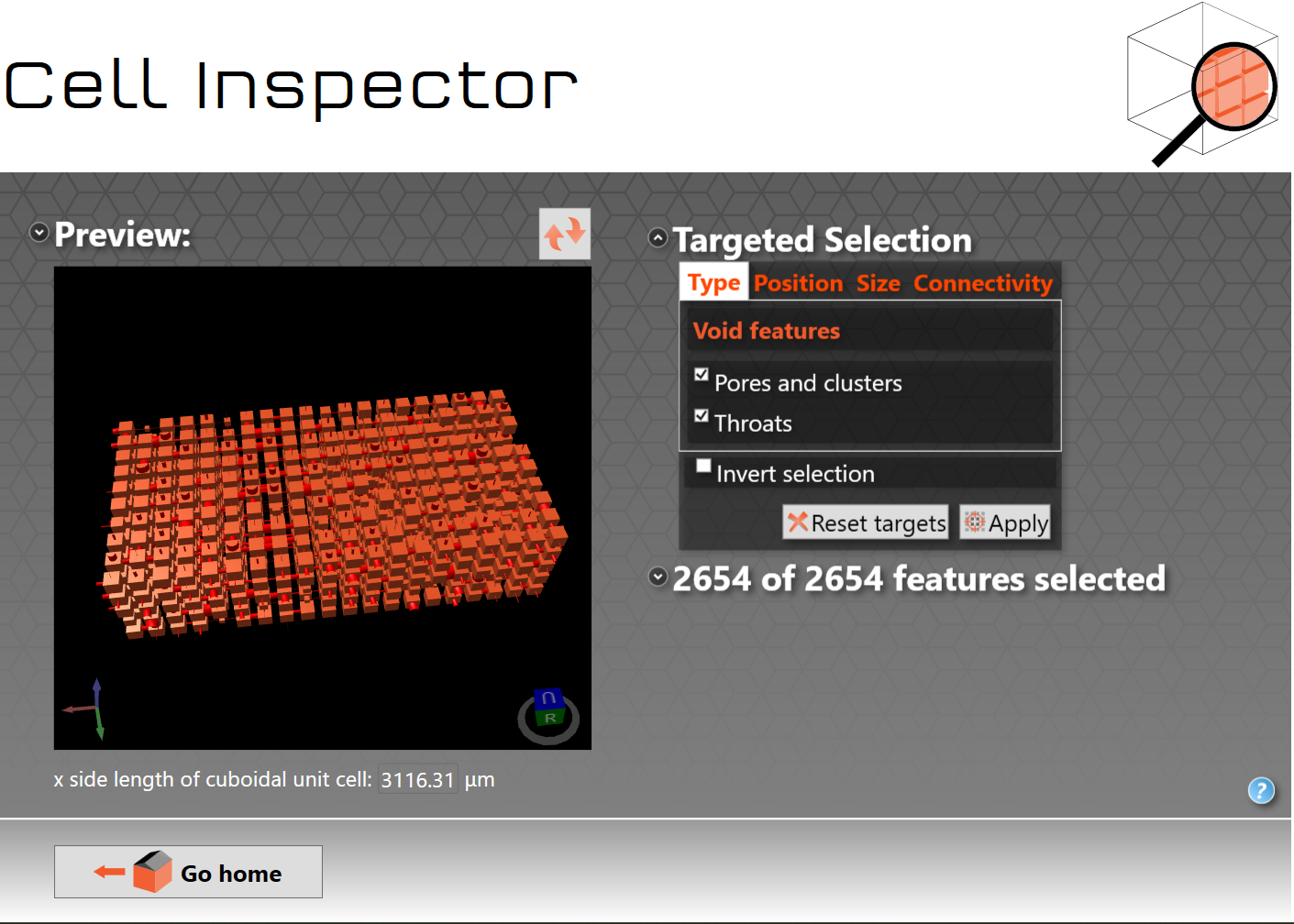
3D cell inspector showing a 20 x 10 x 5 unit cell with all of the void structure displayed.
If you double click on the preview structure a full screen structure appears. To close the full screen preview, click on the full screen to make sure it is selected, and then press the escape button on your keyboard. Use the right hand mouse button to allow you to move the structure, or click on the little cube in the bottom right hand corner which shows the face labels (e.g. U = Upper = maximum z = fluid reservoir face).
The right hand side of the above screen allows you to select different features to examine the properties of the selected feature or determine the average properties of all the selected features by feature type. The targeted selection works in the same way of the targeted modification operation, allowing you to visualise, for example, ink bottle pores or throats that are filled with a fluid. Choose according to Type, Position, Size or Connectivity, and click Apply. The features not selected appear feint, as shown below where only throats have been selected.
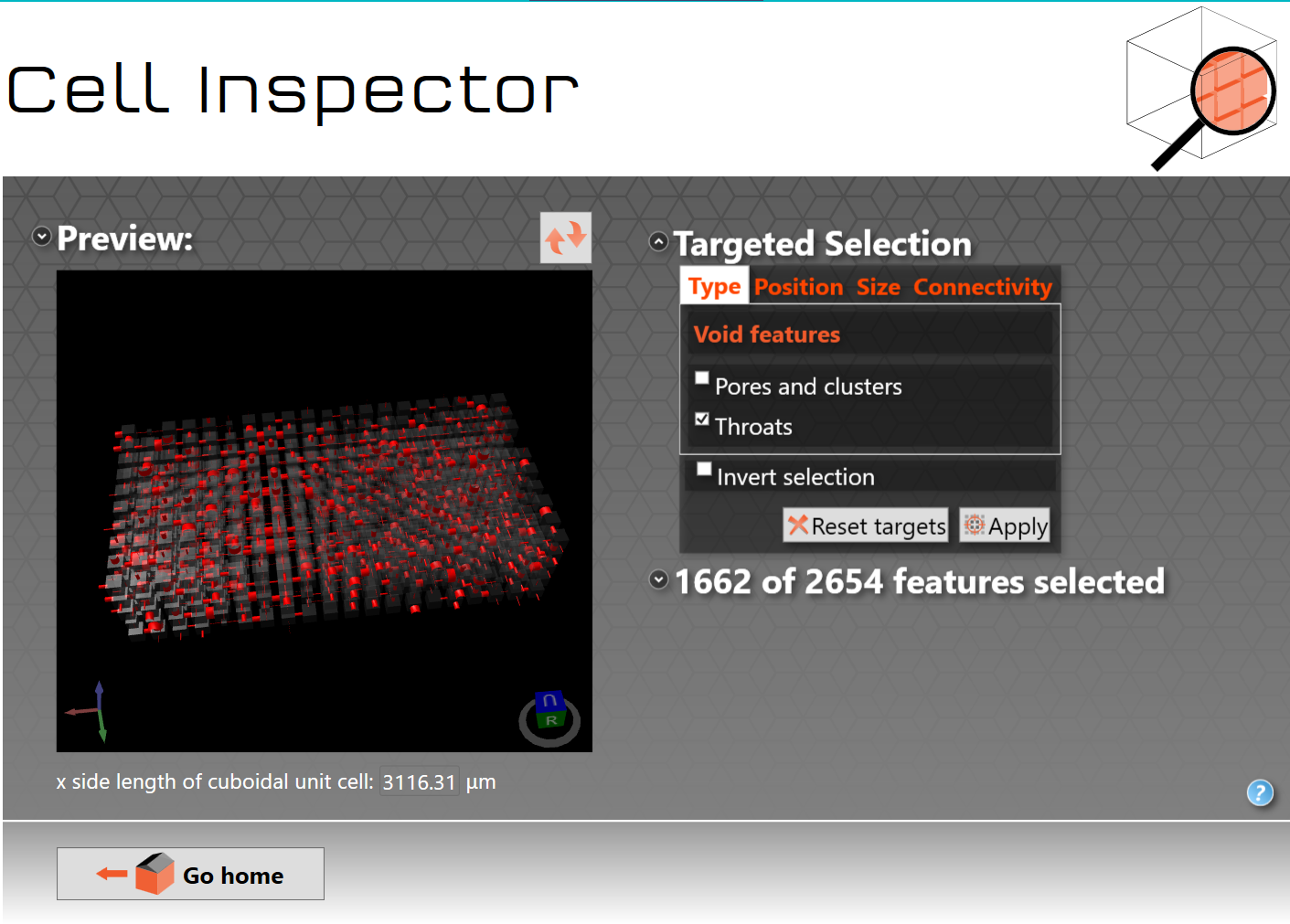
3D cell inspector showing only throats.